The welcome steps ask what kind of company you run and how it handles VAT, on Your company and VAT. Your reports are built from your answers, so it is worth taking a moment to get them right. Nothing is created until you press Create company.
- Finish Two-step security in the welcome steps (see Sign up and two-step sign-in), then press Next. The app opens Your company.
- Check Your name, enter your Company name, and your Companies House number if you have it to hand. Press Next.
- On VAT, choose your VAT scheme: Flat Rate Scheme, Standard Scheme or Not VAT registered.
- If you are VAT registered, enter your VAT number (optional), VAT registered on (required) and VAT quarters end. The quarter setting decides the periods your VAT return covers.
- On the Flat Rate Scheme, enter Flat rate now. If your rate will change on a future date, tick My rate changes on a future date, then enter the New rate and the date in From.
- Choose How your VAT turnover is counted, which sets when a sale counts towards your VAT. The Flat Rate Scheme offers Invoice (basic) and Cash basis. The Standard Scheme offers Invoice accounting and Cash accounting.
- Read What will be set up. It shows your company, scheme, quarters and rate history before anything is created, so you can correct a mistake first.
- Press Create company. A message says the company is set up and that a starter set of categories was added. Press Back instead to change Your company: what you typed is kept.
- On AI level, choose how much the AI may see and press Next. None is already chosen, and you can change it later in Settings.
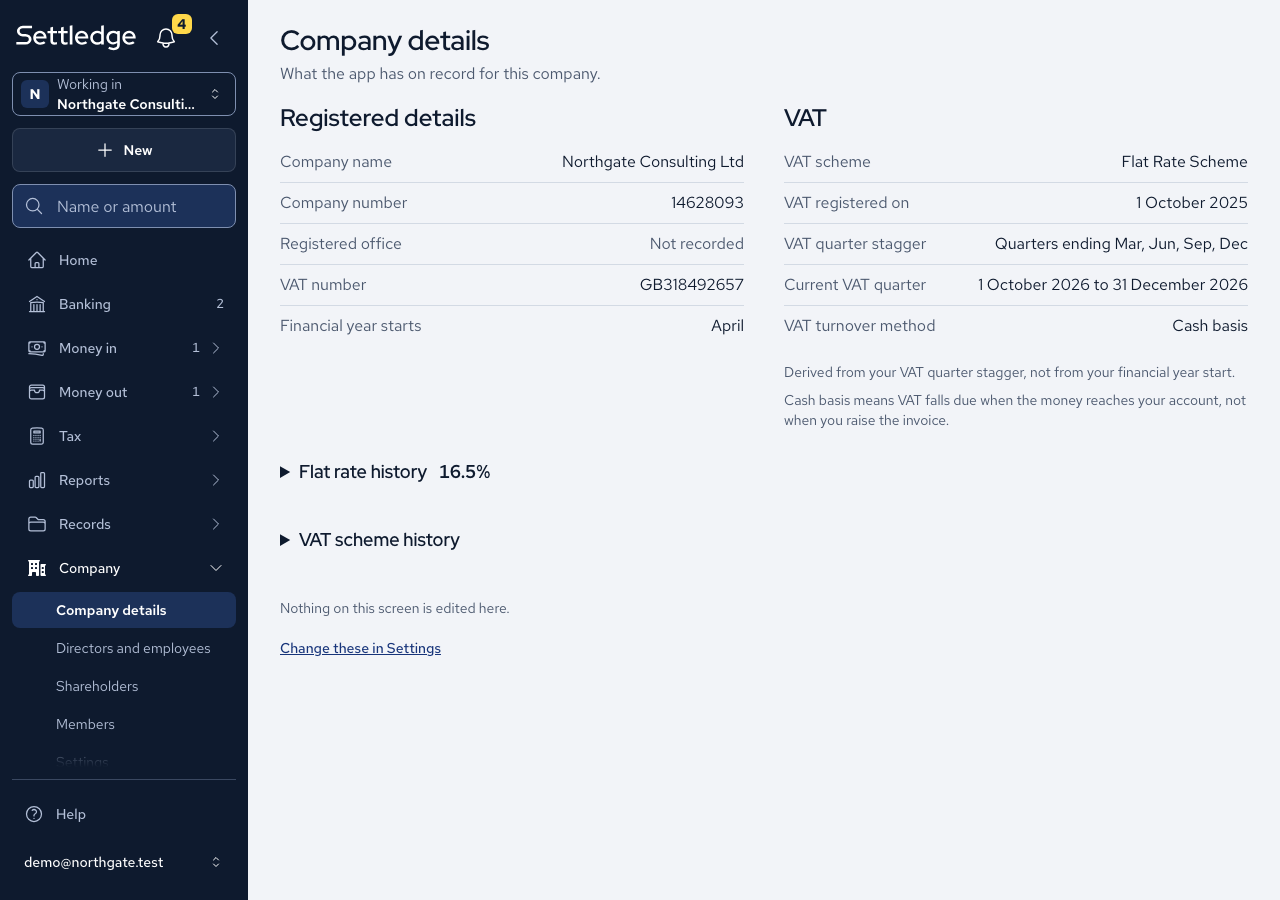
- Home opens with a message such as "Alpha Ltd is set up." and offers a short tour. Home's Start here card lists what to do next. To review the company later, open Company, then Company details.
Cases
- Not VAT registered hides every VAT field, and Company details then shows no registration, quarter or method rows.
- A registered scheme without a registration date is refused with "Enter the date you registered for VAT." and no company is created.
- A negative rate, a rate above 100% and a rate with more than two decimals are refused. A rate of zero is accepted.
- Changing the scheme resets the turnover method to that scheme's starting choice. Changing anything else keeps your choice.
- The Standard Scheme shows no flat rate field and no rate history.
- If any part of set-up fails, no company is created, so you are never left with half a setup.
- If the company name is blank when you press Create company, you are sent back to Your company with the error.
- Pressing Create company twice makes one company.
- Company details only displays what the app holds. To change something, press Change these in Settings.
Good practice
- Enter the rate you pay now. If it will change on a known date, such as the end of a first-year discount, add the new rate and its start date straight away. The form notes that first-year rates are 1% lower, and the app uses the rate in force on each date.
- Choose the turnover method deliberately. The Flat Rate Scheme starts on Cash basis, and the app never assumes the invoice basis on your behalf.
- After creating the company, open Company details and compare the registration date, quarters and rate history with your VAT certificate.
- Add your company dates from the Start here card soon after, so the deadlines on Home are right.