Here you create your account and protect it with a code from your phone, so that only you can open your company's books.
- Open Create your account. Sign-up is by invitation during the pilot, so use the email address the invitation was sent to.
- Enter your email address, choose a password and type it a second time. Tick the box to confirm you have read the privacy policy and the terms, then press Sign up.
- Open the verification email the app sends you, follow its link and press Confirm. This proves the address is yours.
- Sign in with your email address and password. With no company yet, the app opens the welcome steps on Step 1 of 5.
- On Before you start, read the four points, tick I understand these four points and press Next. If the privacy policy or terms have changed since you last agreed, a second box asks you to tick that too.
- On Two-step security, press Use an authenticator app. On Set up two-step sign-in, scan the code with an authenticator app on your phone, or type the setup key into the app. Enter the 6-digit code it shows and press Turn on two-step sign-in.
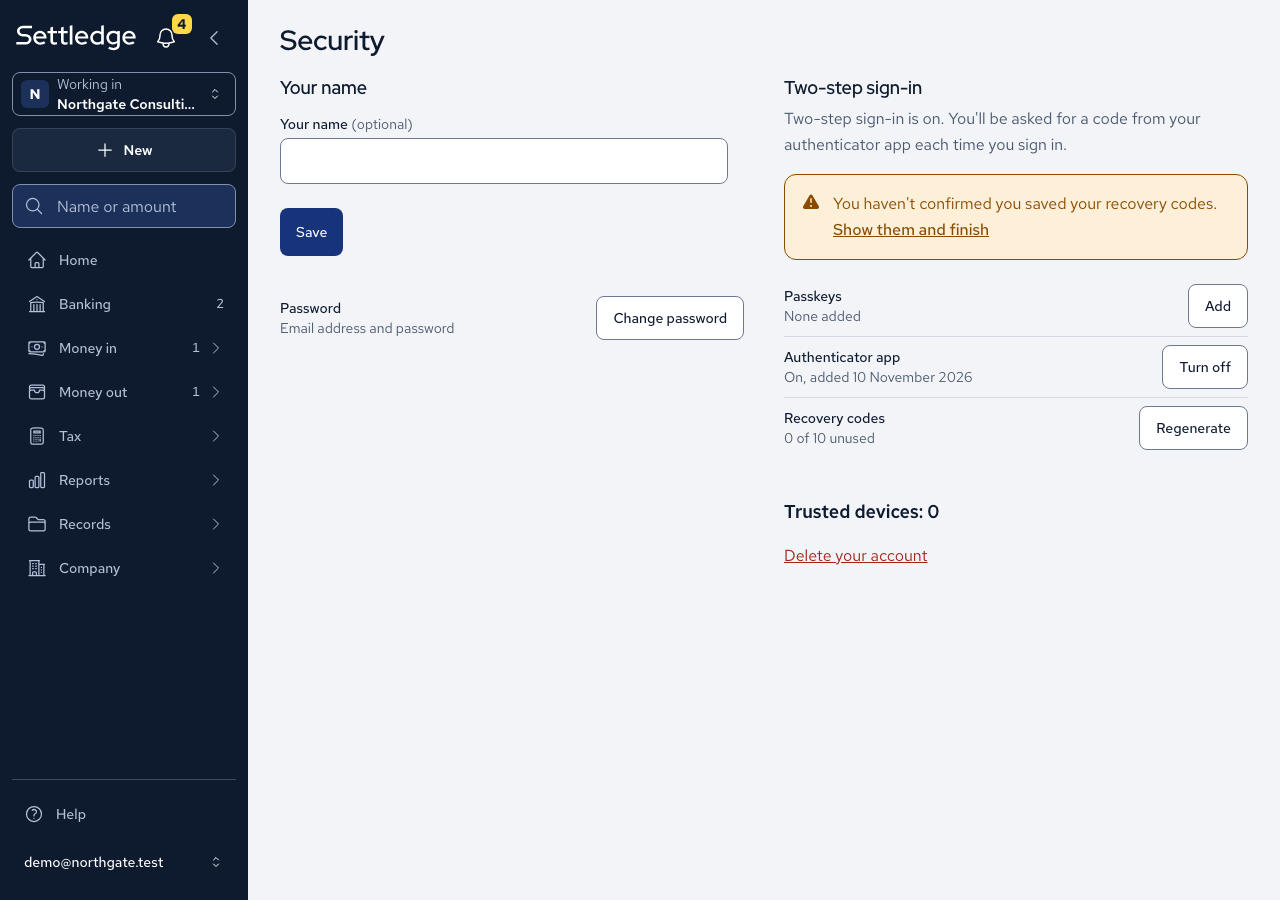
- On Save your recovery codes, store the codes somewhere you can reach without your phone. Tick the box to confirm you have saved them, then press Finish setup. The codes are shown only once, so take your time here.
- Finish setup opens the Security page. Open any screen and the app takes you back to Two-step security. Continue setting up on the authenticator or passkey screens does the same. It now reads "Two-step sign-in is on." Press Next to carry on.
- From then on, sign in with your password and enter the code on Enter your code.
Cases
- An address that is not on the invitation list is refused with "Sign-up is by invitation during the pilot." and no account is created.
- Capital letters and spaces around your address make no difference.
- If someone invited you to their company, accept that invitation instead. It does not depend on the sign-up list.
- A wrong password brings one message that does not reveal whether the account exists, and repeated failures are paused for a cooling-off period.
- A passkey on its own is enough for Two-step security. Recovery codes on their own are not.
- Any other screen asks a signed-in person with no second step to set one up first. The two-step screens and company set-up do not.
- A code that was valid 20 seconds ago is still accepted, which allows for a slightly slow clock, but a code can never be used twice.
- After too many wrong codes you must wait for a cooldown, and the app tells you when you may try again.
- Each recovery code works once, and you are told how many remain.
- Making a new set of recovery codes retires the old set.
Good practice
- Keep your recovery codes away from your phone. If you lose both, the app cannot reset your access: someone with access to the server has to do it.
- Tick the remember-this-device box only on a computer that is yours. Your password is still required each time.
- Turning two-step sign-in off asks for your password and explains what stops working before you confirm.